Get battlegentd
Install battlegentd on your machine to use Claude Code or Codex from your browser or phone.
Version 2026.10.6
On this page
Before you start
Install Claude Code or Codex on the same machine. If battlegentd is already running, restart it after installation. The hub will prompt you to sign in to the agent if needed.
The machine needs outbound UDP access on port 443 to connect to the hub. No port forwarding is needed.
Install Claude Code or Codex
curl -fsSL https://claude.ai/install.sh | bashirm https://claude.ai/install.ps1 | iexcurl -fsSL https://chatgpt.com/codex/install.sh | shpowershell -ExecutionPolicy ByPass -c "irm https://chatgpt.com/codex/install.ps1 | iex"Sign in to the hub with GitHub and open your organization’s page. Enter a machine name under devices and click enroll. Copy the command shown; it can only be used once and expires after two hours.
In the terminal commands below, replace <code> with your enrollment
code.
macOS
Requires macOS 13 or later and an Apple silicon Mac. Run these commands to install and open the app:
name=battlegentd-2026.10.6-macos-arm64
curl -fsSL https://hub.battlegent.com/dl/$name.tar.gz | tar -xz
mv $name/battlegentd.app /Applications/
open /Applications/battlegentd.app
Or download and extract the archive, then move battlegentd.app to /Applications:
- Apple silicon battlegentd-2026.10.6-macos-arm64.tar.gz 10.3 MB sha256
If macOS blocks the downloaded app, run this command before opening it:
xattr -dr com.apple.quarantine /Applications/battlegentd.appEnroll
Click the rook in the menu bar, choose Enroll… and paste the hub’s command. Use Open Web UI to open your sessions.
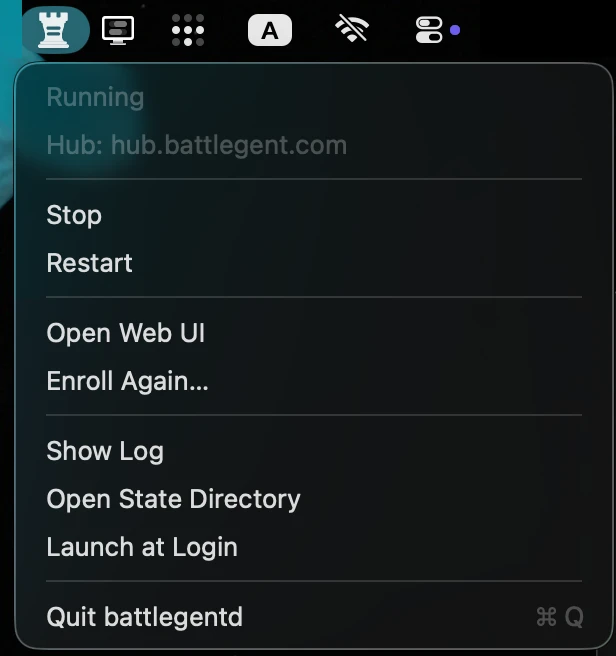
To run the daemon from a terminal or over SSH:
B=/Applications/battlegentd.app/Contents/MacOS/battlegentd
$B enroll <code>     # once
$B                   # serve; Ctrl-C to stop
Uninstall
Turn off Launch at Login in the menu, then quit battlegentd. To remove the app and delete its saved sessions and device key:
rm -rf /Applications/battlegentd.app "$HOME/Library/Application Support/battlegent"
defaults delete com.battlegent.battlegentd   # only if you set any
Revoke the device from your organization’s page in the hub. This requires admin access.
Linux
Install battlegentd in ~/.local/bin:
mkdir -p ~/.local/bin
name=battlegentd-2026.10.6-linux-$(uname -m)
curl -fsSL https://hub.battlegent.com/dl/$name.tar.gz \
    | tar -xz --strip-components=1 -C ~/.local/bin $name/battlegentd
battlegentd --version- aarch64 battlegentd-2026.10.6-linux-aarch64.tar.gz 9.1 MB sha256
- x86_64 battlegentd-2026.10.6-linux-x86_64.tar.gz 9.7 MB sha256
Enroll and run
battlegentd enroll <code> --hub=https://hub.battlegent.com
battlegentd
If your agents need environment variables, add them to ~/.local/share/battlegent/env, one KEY=value per line.
To keep battlegentd running after logout, start it as a systemd user service:
loginctl enable-linger "$USER"
systemd-run --user --unit=battlegentd -p Restart=on-failure \
    -p EnvironmentFile=-$HOME/.local/share/battlegent/env \
    -E PATH="$PATH" ~/.local/bin/battlegentd
journalctl --user -u battlegentd -f
This service stops when the machine restarts. For startup at boot, follow QUICKSTART.md in the archive. To upgrade, install the new binary
and run systemctl --user restart battlegentd.
Uninstall
If you set $XDG_DATA_HOME, use $XDG_DATA_HOME/battlegent in the deletion command below.
To stop and remove battlegentd, including its saved sessions and device key:
systemctl --user stop battlegentd
rm -f ~/.local/bin/battlegentd
rm -rf ~/.local/share/battlegent
If you installed the service from QUICKSTART.md, disable it with systemctl --user disable --now battlegentd and delete the unit file.
Revoke the device from your organization’s page in the hub. This requires admin access.
Container
Save this as Dockerfile. It installs battlegentd and both agents:
FROM debian:trixie-slim
RUN apt-get update && apt-get install -y --no-install-recommends ca-certificates curl git \
    && rm -rf /var/lib/apt/lists/*
RUN name=battlegentd-2026.10.6-linux-$(uname -m) \
    && curl -fsSL https://hub.battlegent.com/dl/$name.tar.gz \
    | tar -xz --strip-components=1 -C /usr/local/bin $name/battlegentd
RUN useradd -m agent && mkdir -p /data/codex && chown -R agent /data
USER agent
RUN curl -fsSL https://claude.ai/install.sh | bash \
    && curl -fsSL https://chatgpt.com/codex/install.sh | sh
ENV PATH=/home/agent/.local/bin:$PATH \
    BATTLEGENT_STATE_DIRECTORY=/data/battlegent \
    CLAUDE_CONFIG_DIR=/data/claude \
    CODEX_HOME=/data/codex
CMD ["battlegentd"]
Build the image, enroll with your code from the hub, then start the container:
docker build -t battlegentd .
docker run --rm -v battlegent:/data battlegentd \
    battlegentd enroll <code> --hub=https://hub.battlegent.com
docker run -d --restart=unless-stopped -v battlegent:/data battlegentd
Your sessions, device key and agent logins are saved in the battlegent volume. Use -e or --env-file to set environment variables for the agents.
Windows
Requires Windows 11 or Windows 10 version 1809 or later. Run the installer in PowerShell; it installs battlegentd for your user account and sets it to start at login. Administrator access is not required.
irm https://hub.battlegent.com/dl/install.ps1 | iexView the installer script. Run it again to upgrade.
Or download and extract the archive below. If Windows blocks the unsigned app, select More info, then Run anyway.
- Arm battlegentd-2026.10.6-windows-arm64.zip 9.6 MB sha256
- x64 battlegentd-2026.10.6-windows-x86_64.zip 10.3 MB sha256
Enroll
Open the rook menu beside the clock, choose Enroll… and paste the hub’s command. If the icon is hidden, click ^ to find it.
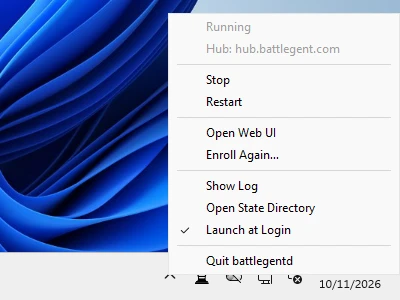
To run the daemon from PowerShell:
$B = "$env:LOCALAPPDATA\Programs\battlegent\battlegentd.exe"
& $B enroll <code>     # once
& $B                   # serve; Ctrl-C to stop
Uninstall
Run these commands to uninstall battlegentd and delete its saved sessions and device key:
& ([scriptblock]::Create((irm https://hub.battlegent.com/dl/install.ps1))) -Uninstall
Remove-Item -Recurse -Force "$env:LOCALAPPDATA\battlegent"
Revoke the device from your organization’s page in the hub. This requires admin access.